Intro
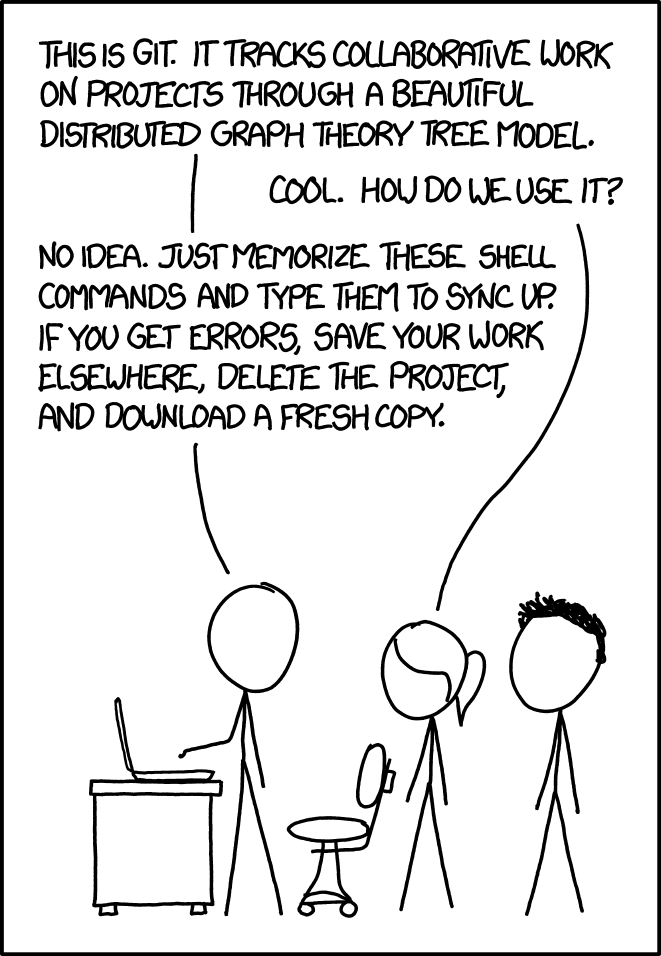
I have been always felt tormented while using Git when working with teams or even alone. This below comic from xkcd aptly summarizes my experience with Git.
To finally get comfortable, and efficiently use Git, I went through this lecture(link) from Missing semester course. Trying to summarize and demnstrate my learnings. Recommend this video and lecture notes for detailed walkthrough.
Data model
Terminology:
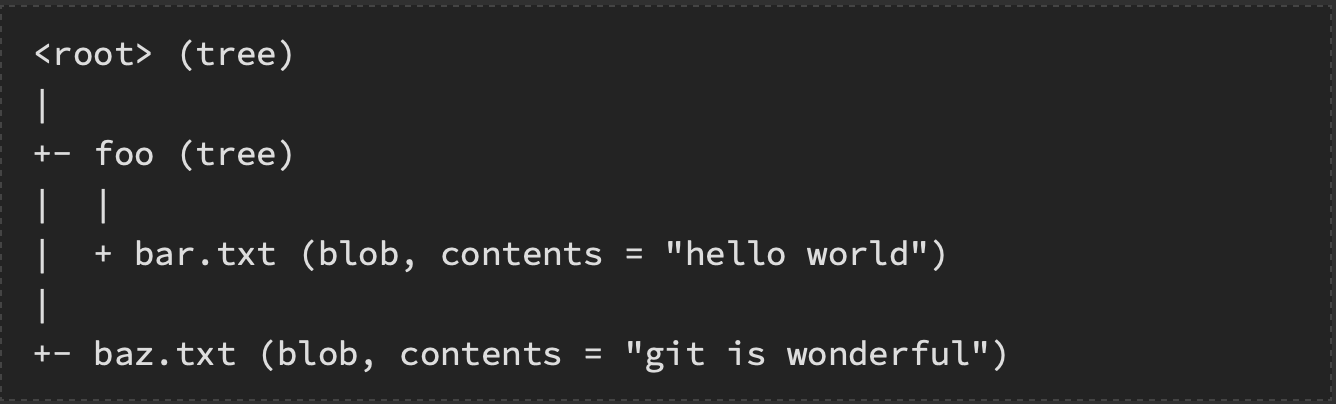
- blob - a file (which is a bunch of bytes) is called a blob
- tree - a directory is called a tree, it maps names to blobs or treees
- commits - snapshots are called commits.
DAG (directed acyclic graph):
- Each snapshot in git refers to a set of ‘parents’ (snapshots that preceded it).

- A snapshot might descend from multiple parents (due to merging)
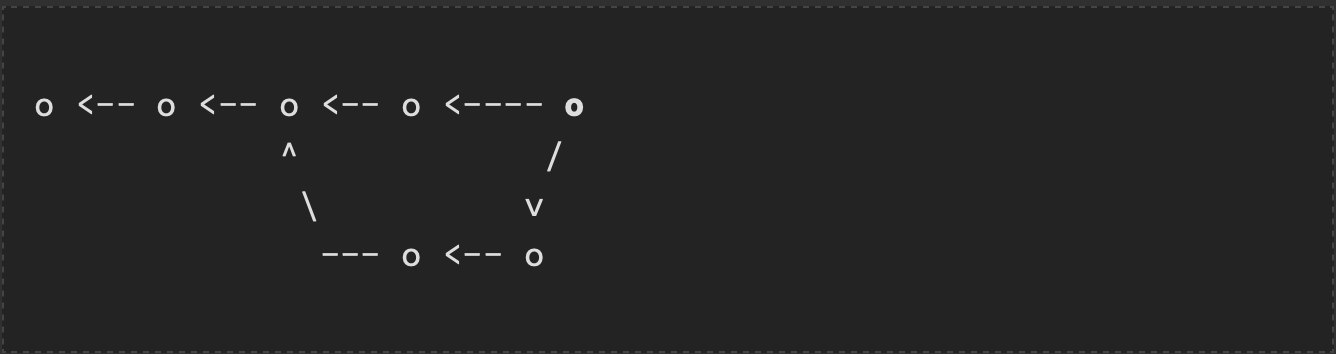
- The arrow points to the parent of each commit
- Commits are immutable
Command line
Basics
git help <command>: get help for a git commandgit init: creates a new git repo, with data stored in the .git directorygit status: tells you what’s going ongit add <filename>: adds files to staging areagit commit: creates a new commit- Write good commit messages!
- Even more reasons to write good commit messages!
git commit -a: commits all already tracked files by git without explicitly adding
git log: shows a flattened log of historygit log --all --graph --decorate: visualizes history as a DAGgit diff <filename>: show changes you made relative to the staging areagit diff <revision> <filename>: shows differences in a file between snapshotsgit checkout <revision>: updates HEAD and current branch- move around in your version history
- it not just moves you different brach names, but can also move you with hash ids
- essentially it moves HEAD around
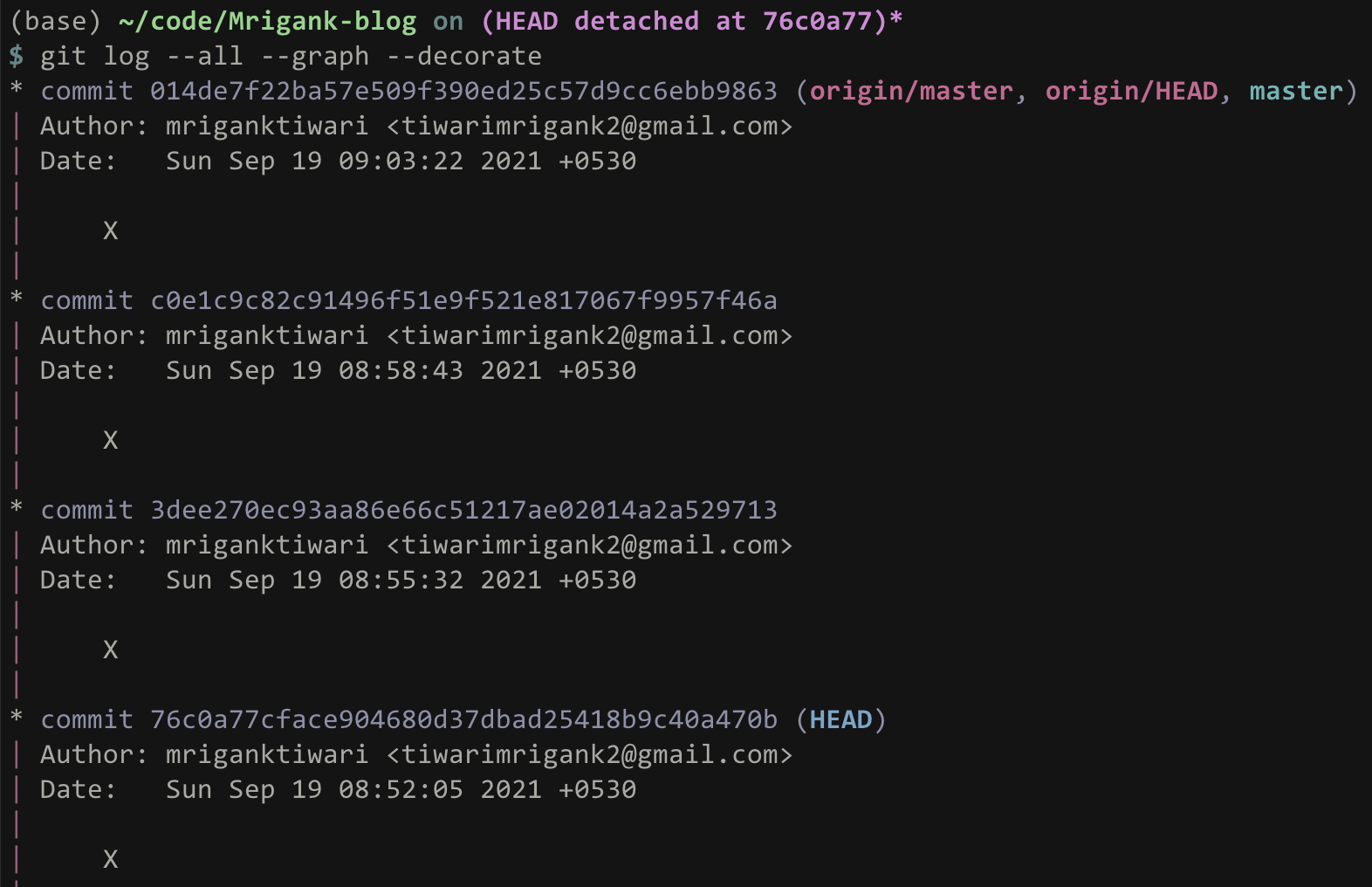
- Let’s take a look at decorated logs
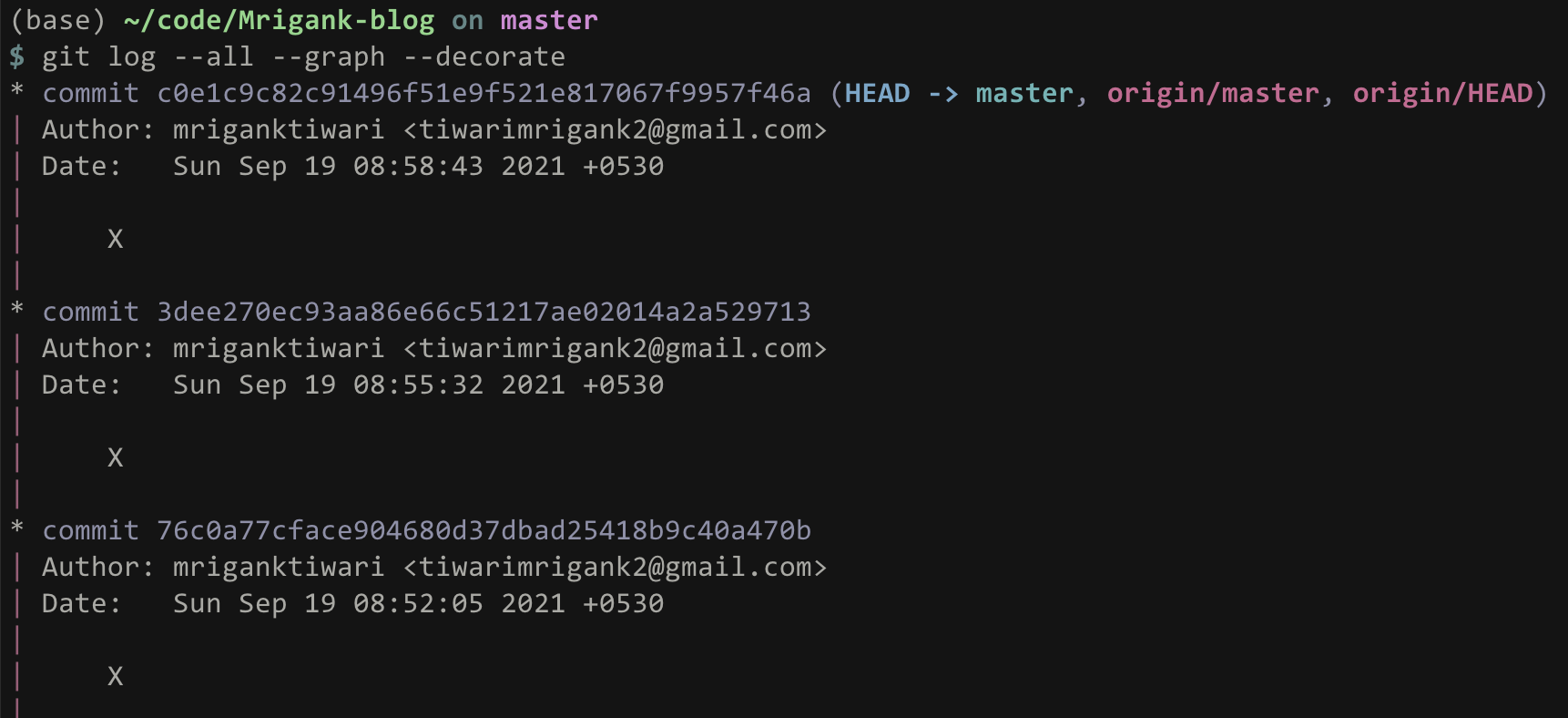
- Let’s move our HEAD to commit #76c0a77c
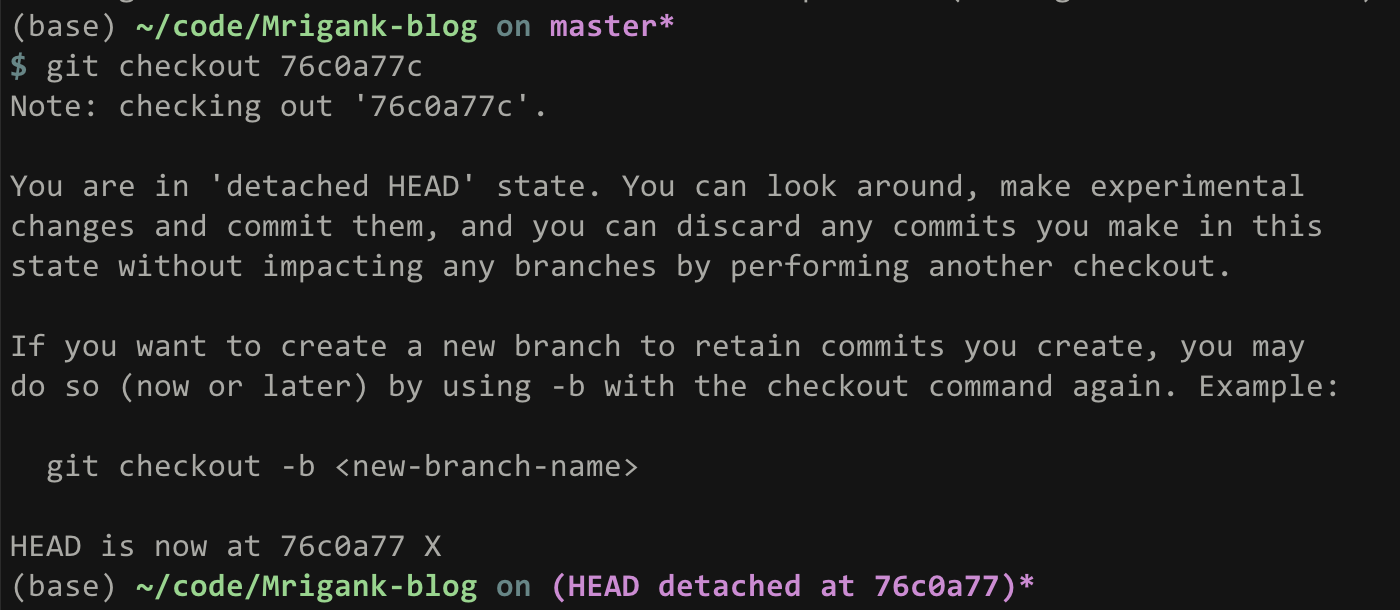
- Now if we see git log (the decorated version) - HEAD is moved to the desired commit (snapshot) with hash key (that too not complete hash is required)
Branching & Merging
git branch: shows branchesgit branch <name>: creates a branchgit checkout -b <name>: creates a branch and switches to it- same as
git branch <name>; git checkout <name>
- same as
git merge <revision>: merges into current branchgit mergetool: use a fancy tool to help resolve merge conflictsgit rebase: rebase set of patches onto a new base
Remotes
git remote: list remotesgit remote add <name> <url>: add a remotegit push <remote> <local branch>:<remote branch>: send objects to remote, and update remote referencegit branch --set-upstream-to=<remote>/<remote branch>: set up correspondence between local and remote branchgit fetch: retrieve objects/references from a remotegit pull: same as git fetch; git mergegit clone: download repository from remote
Advanced git
git config: Git is highly customizablegit clone --depth=1: shallow clone, without entire version historygit add -p: interactive staginggit rebase -i: interactive rebasinggit blame: show who last edited which linegit stash: temporarily remove modifications to working directorygit bisect: binary search history (e.g. for regressions).gitignore: specify intentionally untracked files to ignore